Saner macOS keybindings with skhd.zig
Intro
As a Linux and Windows user, I am used to managing my keyboard shortcuts in a certain way. On Linux, I may use a combination of CLI tools such as xbindkeys, xmodmap, xdotool, and xcape, as well as a tiling window manager such as i3wm or the extensive graphical settings of KDE Plasma. On Windows, I rely heavily on AutoHotkey. These are fairly simple text-based tools, which allowed me to achieve great things considering that I'm just a computer nerd who can follow simple instructions.
With the arrival of AI (LLMs), my life became significantly easier. Although I have no aspirations to become a professional programmer, I still require my operating systems to behave in ways that exceed the knowledge of a layman.
macOS Tahoe enters my life
A few months ago I had to buy a new laptop and was quite satisfied with the idea of running Linux on it. Much to my surprise, my mother, upon hearing of this, decided to gift me with her old M2 MacBook Air. Despite my prejudices, it is in bad taste to refuse a gift, and at the end of the day, Apple really knows how to make laptops.
Getting used to macOS was pretty hard, as it seems to take pleasure in being different for the sake of being different. Regardless, I bit the bullet. I fixed some issues here and there, but I wasn't gonna replace everything or install a window manager on top of it. I am still using macOS, only tweaked to my preferences.
Minor tweaks
I use Rectangle (free version) just to alternate between fake-full-screen and non-fake-full-screen. I have the Marta file manager, which was not easy to learn, but I hate Finder with a passion. I have the Alacritty terminal just because it opens super fast, and Sublime Text (the free version with nagware) largely for the same reason. TopNotch was a necessity since I cannot go on with my life looking at my M2 MacBook Air's ridiculous notch. I also got Instant Space Switcher just to reduce the animation between spaces. What else? Ah, Karabiner to switch Option with Control. That is it. Is that a lot? It didn't feel like a lot since I added them gradually, but the reality is that, although excellent, macOS also annoys me quite a bit.
The problem with macOS keybindings
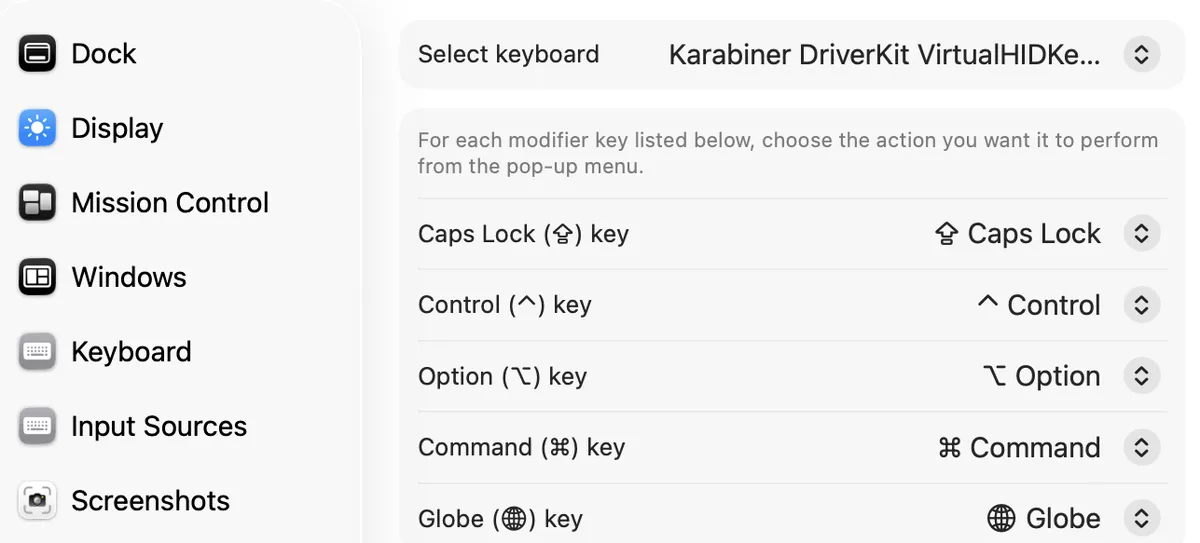
Keybindings are the one thing that causes me grievance due to their inconsistency. There are many ways of doing the same thing, and they don't work in conjunction.
First, there is Keyboard Shortcuts in the settings, where you can define shortcuts for most of the system's default commands. Great. But why is there also a tab within the settings called App Shortcuts which does not, in fact, run apps? Apparently App Shortcuts does nothing of the sort! Perhaps it is meant to run commands inside a program? There is nothing in the UI to prevent that ambiguity.
To make matters worse, there is also an application called Shortcuts where I can also define shortcuts! Well, given that most keyboard shortcuts are meant to be given via keyboard, why the ambiguity?
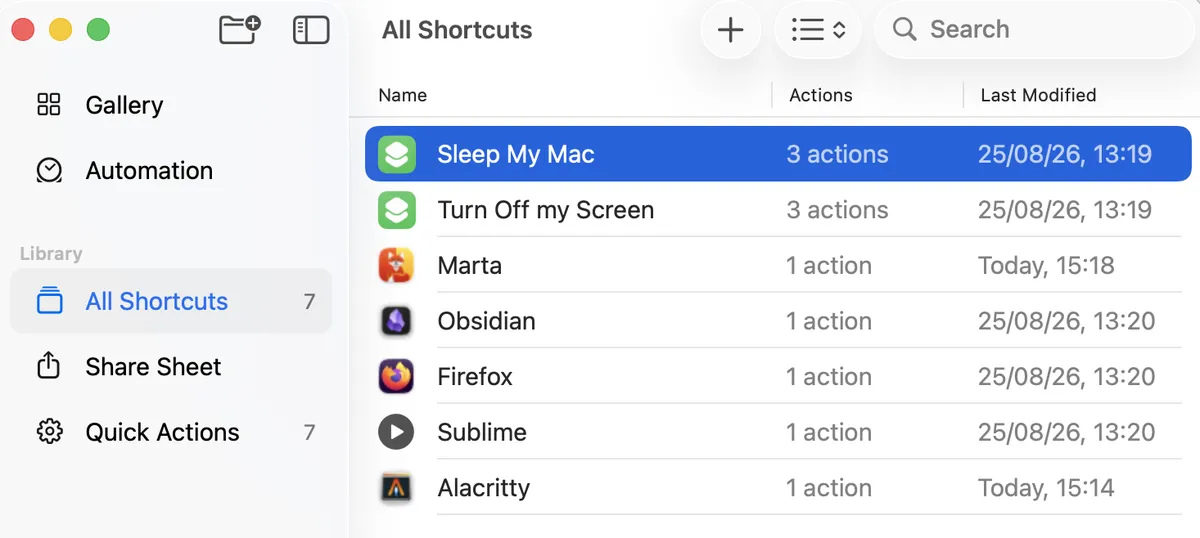
Furthermore, Shortcuts won't accept every keybinding and, worse, it won't tell me the source of the conflict. So I have to scrutinize Keyboard Shortcuts, find the command, and disable it. It also won't allow some keybindings regardless, such as using the fn key.
I bet longtime macOS users are shouting "Automate!" at me right now. But, again, I am not a programmer, and I don't wanna learn a whole new set of competing tools full of buttons and nobs and tabs mixed with scripts just to set a keybinding. I may not be a programmer, but I am an advanced and impatient user. As a Linux user, I much prefer the simplicity of a single config file to managing a bunch of pretty buttons and knobs.
In any case, I begrudgingly created several keyboard shortcuts on Shortcuts (do not confuse it with Keyboard Shortcuts because that is another thing entirely!). I found Shortcuts very pleasant and even managed to add little notifications about the apps I was running. Great! Unfortunately, the shortcuts did not work everywhere. For some reason, Emacs captured all of them, preventing them from working. I use a lot of Emacs, so that is an issue. They also did not work on other windows, such as over Cold Turkey or Micromanager. It even sometimes added fn randomly to some keybindings. That is not good!
The solution to macOS keybindings nonsense
Unlike any of the built-in solutions, skhd.zig can create keybindings using the fn tool and always takes precedence over others. A keybinding set correctly on skhd.zig is guaranteed to work.
I use Homebrew to install all my programs and you should too. It is great, reliable, and simple. It is a command-line tool, though, so no graphics. But if you're reading this, I assume that is not a problem.
You can install skhd.zig via Homebrew. You can find further instructions on their GitHub on managing the service.
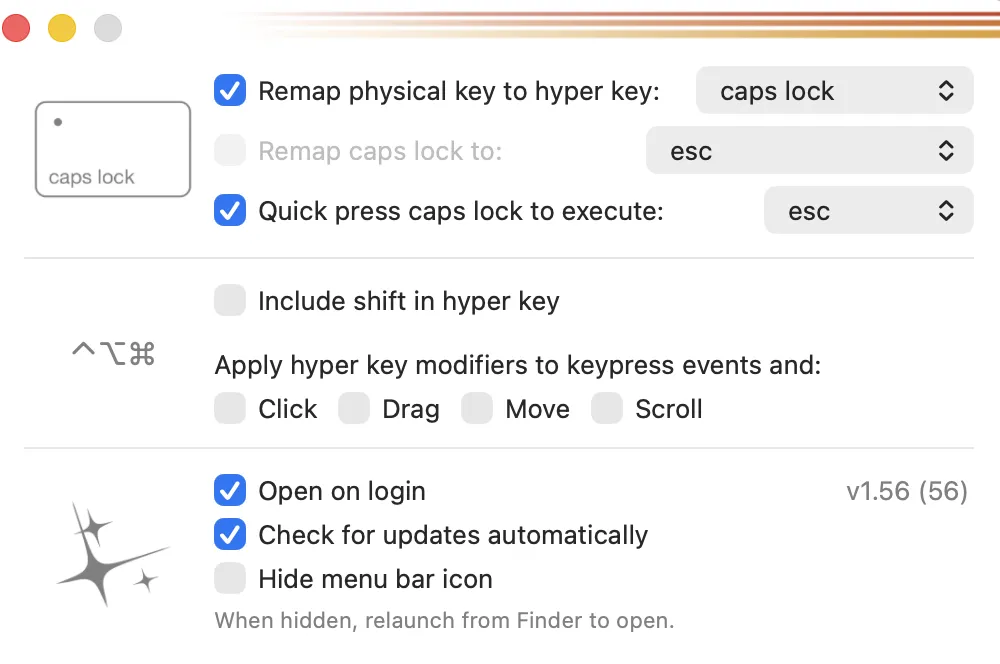
You may also wanna add a HyperKey to your system. A HyperKey is simply a way to map several modifiers to a single key, making it completely unique so there are no conflicts with other keybindings. That creates an additional modifier which works in the same way as ⌥ (option) or ⌘ (command) would. The program hyperkey facilitates that. I suggest mapping CapsLock as the HyperKey and making it send Esc on a quick press.
That will install both HyperKey and skhd.zig:
brew install jackielii/tap/skhd-zig
skhd --install-service
brew install hyperkey
Set up HyperKey by running the program via Spotlight or some other way. It will show on the menu bar as a little helmet. Click on it to view the settings.
Next, start the skhd service.
skhd --start-service
skhd.zig will always watch your ˜/.skhdrc for changes, so you don't need to restart the server after every edit. That's pretty neat!
You may be required to grant permissions for skhd, which you can safely do. However, just in case, search for "Login Items" using Spotlight (⌘ + Space) and make sure that skhd's entry exists and is activated. After that, you should either create or use an existing ˜/.skhdrc file. That is where all your keybindings will be stored. That is my ˜/.skhdrc below.
Click to view code
# Put Mac to sleep
ctrl + alt + cmd + shift - f12 : osascript -e 'display notification "Sleeping in 3 seconds" with title "skhd"'; sleep 3; pmset sleepnow

# Put screen to sleep
ctrl + alt + cmd - f12 : osascript -e 'display notification "Putting screen to sleep..." with title "skhd"'; sleep 3; pmset displaysleepnow

# Open or focus Marta
ctrl + alt + cmd - e : open -a "Marta"

# Open or focus Obsidian
ctrl + alt + cmd - o : open -a "Obsidian"

# Open or focus Firefox
ctrl + alt + cmd - f : open -a "Firefox"

# Open or focus Alacritty
ctrl + alt + cmd - return : open -a "Alacritty"

# Emacsclient
ctrl + alt + cmd - y : ~/Scripts/ec-macos

# Sublime Text
ctrl + alt + cmd - n : open -application "Sublime Text"
You may also use a variable inside ˜/.skdrc to make your code neater, avoiding repetitions. Like this:
Click to view code
# Create the $hyper variable with the keys "ctrl + alt + cmd" to avoid repetition
.alias $hyper ctrl + alt + cmd

# Put Mac to sleep
$hyper + shift - f12 : osascript -e 'display notification "Sleeping in 3 seconds" with title "skhd"'; sleep 3; pmset sleepnow

# Put screen to sleep
$hyper - f12 : osascript -e 'display notification "Putting screen to sleep..." with title "skhd"'; sleep 3; pmset displaysleepnow

# Open or focus Marta
$hyper - e : open -a "Marta"

# Open or focus Obsidian
$hyper - o : open -a "Obsidian"

# Open or focus Firefox
$hyper - f : open -a "Firefox"

# Open or focus Alacritty
$hyper - return : open -a "Alacritty"

# Emacsclient
$hyper - y : ~/Scripts/ec-macos

# Sublime Text
$hyper - n : open -a "Sublime Text"
skhd's syntax is fairly simple. Before the colon are the keys, after the colon is the command to execute. Modifiers are joined by the plus symbol. Other keys come after a dash. Notice that the ctrl+alt+cmd will be sent by the HyperKey CapsLock, so all these keybindings only require me to press two keys.
open -a "Firefox" means "either open Firefox or focus it when running". osascriptis a command in AppleScript. AI did it for me as I am not familiar with it, but it is not hard to understand what it is doing just by looking at it. It is quite simple.
Emacsclient (Doom Emacs) tends to misbehave, so I got AI to create the script ec-macos for me:
Click to view code
#!/usr/bin/env bash

# 0. Probe whether the daemon is already running, without starting it.
if emacsclient -e '(+ 1 1)' >/dev/null 2>&1; then
    SERVER_WAS_RUNNING=1
else
    SERVER_WAS_RUNNING=0
fi

# 0b. If it's not running, notify now — before we trigger the (blocking) startup.
if [ "$SERVER_WAS_RUNNING" = "0" ]; then
    osascript -e 'display notification "Starting Emacs server…" with title "Emacs"'
fi

# 1. Start the server if it's not running and check for existing GUI frames
# Alternate editor "" forces emacsclient to start the daemon if missing.
# The Elisp expression returns "t" if there is an existing graphical frame.
HAS_FRAME=$(emacsclient -a "" -e "(if (> (length (frame-list)) (if (daemonp) 1 0)) \"t\" \"nil\")" 2>/dev/null | tr -d '"')

if [ "$HAS_FRAME" = "t" ]; then
    # 2. If a frame exists, bring the Emacs application to the foreground
    osascript -e 'tell application "Emacs" to activate'
else
    # 3. If no frame exists, create a new graphical frame in the background
    emacsclient -n -c -a ""
    sleep 0.3
    osascript -e 'tell application "Emacs" to activate'
fi
I won't pretend to understand any of this, but I am a layman, and that is meant only for my own use. Without that script, Doom Emacs will create a new frame every time I hit HyperKey+y even if a frame (window) already exists. The script forces Emacs to focus on a frame if it already exists. I am sure there's a more elegant way to achieve that from Doom Emacs itself, but that is what I am using in the meantime.
Conclusion
skhd.zig overcomes all the inconsistencies and redundancies of macOS keybinding management with an easy to maintain file written in simple syntax. Although skhd.zig might provide benefits to any users looking for reliable keybindings on macOS that will work no matter what, it is especially helpful for those coming from Linux, AutoHotkey, or anyone who prefers simple text-based tools over convoluted graphical interfaces.